How to import your contact from Gmail to phone
How to Import Contacts from Gmail to Android Phone
Step 1: Log in Gmail
Sign in Gmail with yout account and password. Click "Gmail" at the upper-left corner and choose "Contacts". Hit on the option "More" and select "Export". Then, choose "GO TO OLD CONTACTS".
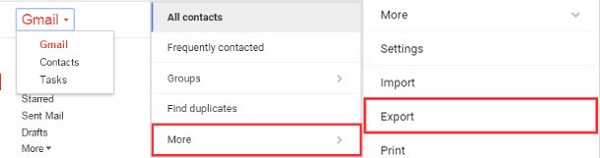
Step 2: Choose contacts to export
Locate the contacts you want to export, select "More" on the top and click the "Export" button.
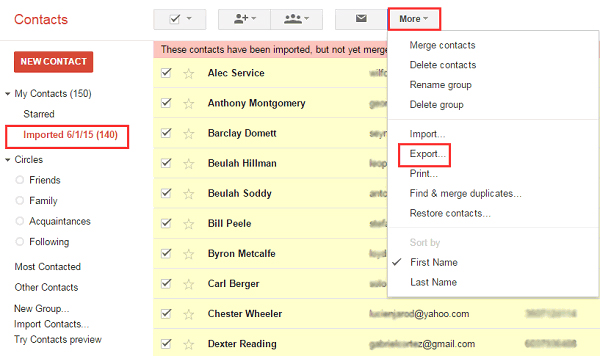
Step 3: Transfer exported contacts from PC to Android
Connect your Android phone to the computer with a USB cable. Copy the contacts that you have exported above and paste to your Android. Then disconnect the Android phone.
Step 4: Import contacts from Gmail to Android
Now, you can turn to your Android phone and enter "Contacts". Tap the "Settings" -> "Contacts" -> "Import/Export Contacts" from the list. Select a place where the exported contacts are located and save contacts to "Device". From the pop-up box, choose "Import vCard file" -> "Import multiple vCard files" or "Import all vCard files" -> "OK". Select a file you need such as "Contacts.vcf" and hit "OK".
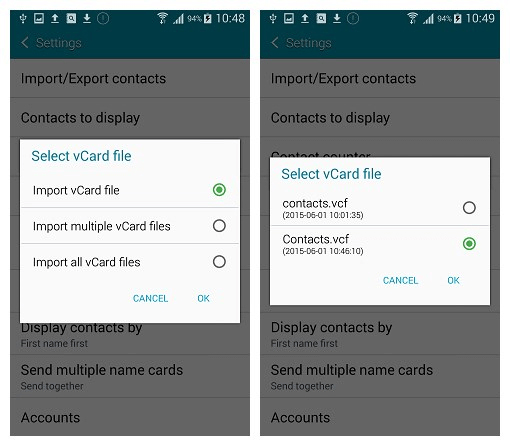
Above are all about how to import Gmail contacts to Android phone.


মন্তব্যসমূহ
একটি মন্তব্য পোস্ট করুন